F
FamilyWhere
Plex, Emby & Jellyfin
meet Cinema.
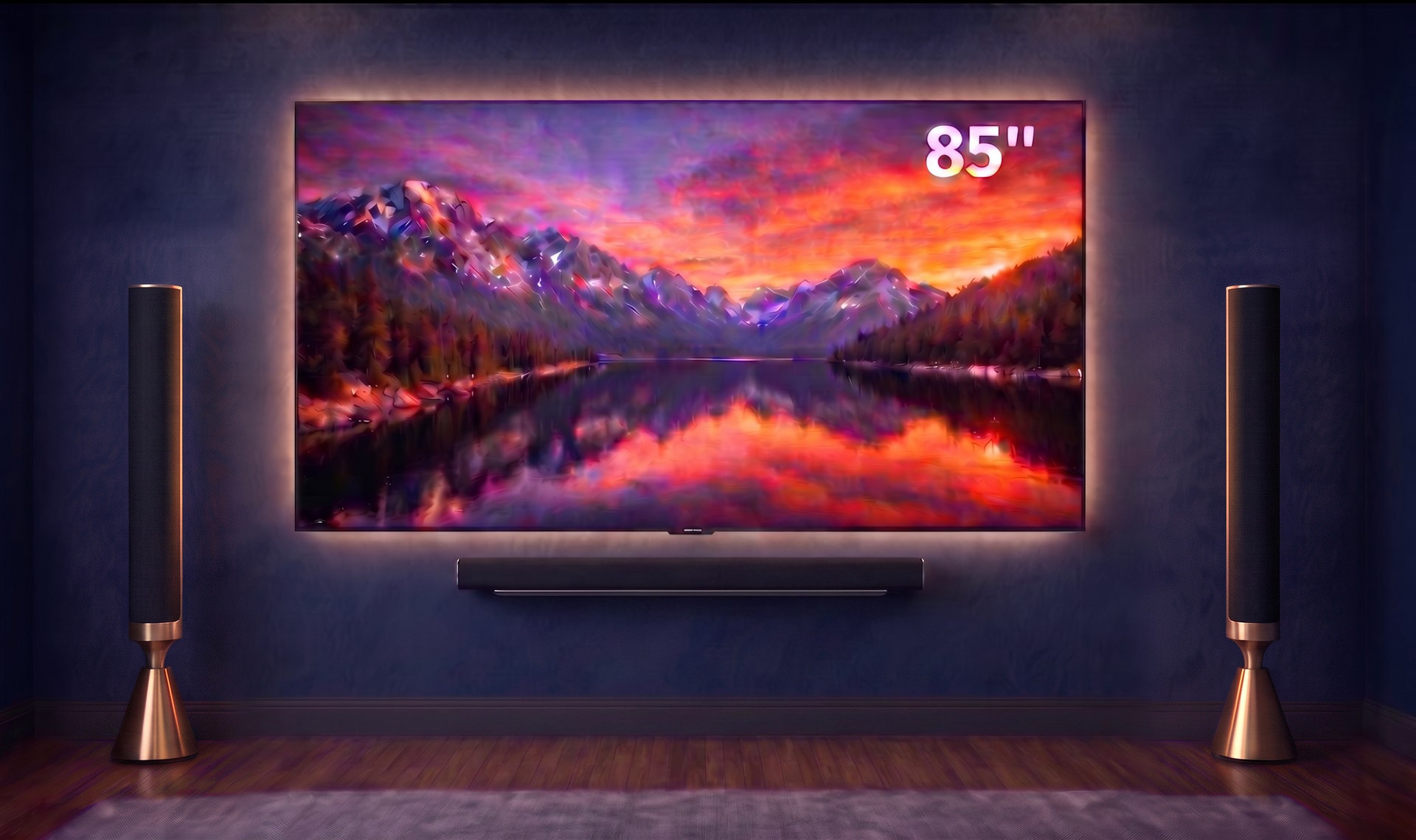
* Simulated TV preview. Your libraries and artwork will differ.
Your personal cinema, perfectly docked.
One home screen forFree · independent · self-hosted
Plex
Emby
Jellyfin
Desktop betaWindows x64 · Intel & Apple Silicon Mac · does not self-update — check back here
Made for everyone at home
Everyone gets their own place.
Choose who’s watching. Their Watchlist, watched status, Continue Watching row and resume points stay with them.
Who's watching?
Example profiles shown. CineDock uses the profiles from your media server.
The better seat in the house
Your library.
Centre stage.
CineDock gives your Plex, Emby or Jellyfin library a remote-first home screen built around your own collection. Your server keeps handling the media, users and playback while CineDock helps you find something worth watching.
Made for the big screen
Browse shelves, open details and control playback from the sofa with a D-pad remote.
Pick up where you left off
Continue Watching, watched titles and resume points follow the profile you choose.
Go beyond the synopsis
Read about the cast, then see which of their other films and shows you already have in your library.
More control when you press Play
Choose subtitles and audio tracks, jump between chapters, and watch the trailers and extras your server provides.
Your libraries, together
Connect Plex, Emby or Jellyfin and browse the libraries and collections available to the chosen profile.
From your desk to Fire TV & NVIDIA Shield
Use CineDock in a browser, through the Windows or Mac beta, or on Amazon Fire TV or NVIDIA Shield TV.
Couch-ready
Made to work properly with a remote.
On Amazon Fire TV and NVIDIA Shield TV, CineDock opens full-screen, with clear focus as you move from the home screen to the player controls.
Clear D-pad selectionFull-screen playbackChapters, tracks & subtitles
Tested on Amazon Fire TV, NVIDIA Shield TV and the Zidoo Z9X 8K.
Choose your version
Run it at home.
Watch it everywhere.
Install CineDock on Windows or a Mac, download the app for Fire & Shield TV, or run the container for browsers around your home.
Read the beta release notesStandalone for Zidoo
Zinedock
Your Zidoo library.
No media server required.
Bring your films, TV series and collections together in a cinema-style library. Zinedock reads your existing Home Theater library and plays through Zidoo's own player.
Smart film collections, local trailers and your own home screen — all on your Zidoo.
Download Zinedock Download Playback Helper
Install the helper first, then Zinedock.
Explore Zinedock & setupChoose where CineDock will run
Use the Windows or Mac beta for one computer, or install the container for browsers, Amazon Fire TV and NVIDIA Shield TV around your home.
Connect your media server
Choose Plex, Emby or Jellyfin and follow the setup steps on screen.
Add CineDock to Fire TV or NVIDIA Shield
On Amazon Fire TV or NVIDIA Shield TV, install the CineDock app and enter the address shown during setup.
Beta
Windows desktop
CineDock for Windows
Runs CineDock on your Windows PC, opens it in your browser and stays available from the system tray.
- Windows 10 or 11
- 64-bit Intel/AMD PC
- 55.1 MB executable
Windows will warn about this download — here's why, and what to click.
Download for Windows SHA-256 checksumBeta
Mac desktop
CineDock for macOS
Runs CineDock on your Mac and stays available from the menu bar. The Intel build is tested on macOS Monterey 12.7.6; the Apple Silicon build has been confirmed working by an early user.
- Intel (x86_64) and Apple Silicon (arm64) builds
- Intel: 54.7 MB · Apple Silicon: 47.6 MB
- Download the build matching your Mac
macOS will warn about this download — Control-click, then Open.
Download for Intel Mac SHA-256 checksum (Intel)Download for Apple Silicon SHA-256 checksum (Apple Silicon)Amazon Fire TV · Shield TV · Zidoo
CineDock for television
A CineDock container must already be running on your home network. Fire TV and Shield use the standard signed APK. Zidoo uses a dedicated pair: Playback Helper plus CineDock Zidoo. Container updates reach the interface on their own; reinstall an APK only when CineDock announces an app update.
- Amazon Fire TV and Shield TV: one standard APK
- Zidoo: install Playback Helper first, then CineDock Zidoo
- Zidoo Z9X 8K tested with its own player
- Release-signed APKs
Your computer will warn you about this download.
CineDock is free, and the certificate that stops those warnings costs a few hundred pounds a year — so there isn't one. On Windows, choose More info then Run anyway. On a Mac, Control-click CineDock.app and choose Open. Every download has a SHA-256 checksum beside it, so you can check you got exactly what we published — and please leave your security protections switched on.
Easiest setup
Unraid
Install CineDock from Community Applications, keep the /config appdata mapping, and choose any unused host port.
View Unraid setupTrueNAS Apps
TrueNAS
Install CineDock from the TrueNAS Apps catalogue (Community train). Keep the default ixVolume config storage and the WebUI port, then open the Web Portal.
Open TrueNAS catalogueContainer registry
GHCR
Use the CineDock container image from GitHub Container Registry on AMD64 or ARM64 systems.
ghcr.io/cinedock/cinedock:latestOpen GHCR package Docker
Docker Hub
Prefer Docker Hub? The same CineDock image is available there.
getcinedock/cinedock:latestOpen Docker Hub Your media stays with your server.
CineDock works with the server you already run.
CineDock does not include or download films and TV shows, and it does not scan or copy your files. It connects to the Plex, Emby or Jellyfin server you already use. That server continues to manage your media, users, permissions, transcoding and viewing history.
Keep CineDock on your home network. If you need access away from home, use a private network such as Tailscale or another properly authenticated service. Never expose the CineDock port directly to the internet.
Good to know
Straight answers.
Does CineDock include films or TV shows?
No. CineDock lets you browse and play the films and TV shows already on your Plex, Emby or Jellyfin server.
Do the desktop apps need Docker?
No. The Windows and Mac betas run CineDock locally and connect to your existing media server. Use the container if you want CineDock in browsers around your home or on Fire TV and NVIDIA Shield TV.
Why does my computer warn me about the download?
Because the download is not code-signed, and it is not going to be: CineDock is free, and the certificate that removes those warnings costs a few hundred pounds a year. Windows shows SmartScreen — choose More info, then Run anyway. macOS calls the developer unidentified — Control-click CineDock.app, then Open. Both downloads have a SHA-256 checksum so you can confirm the file is exactly what we published. Never switch your security protections off.
Which streaming devices have been tested?
CineDock has been tested on Amazon Fire TV, NVIDIA Shield TV and the Zidoo Z9X 8K. Fire TV and Shield use the standard CineDock TV APK. Zidoo uses its separate two-app release: install CineDock Playback Helper first, then CineDock Zidoo. Playback uses the box's own player, so HDR, Dolby Vision and lossless audio behave as they do for local files. Other Zidoo models with the same player are expected to work but are untested.
Tonight's feature presentation
Rediscover
your library.
Free to use and self-hosted, with apps for Windows, Mac, Amazon Fire TV, NVIDIA Shield and Zidoo.